

Open Graph Meta Tags: How to Get More Clicks on Every Shared Link (2026)
Learn which Open Graph meta tags you need, the right og:image size, how to write link previews that get clicked, and how to test and automate branded OG images.
You spent hours on a blog post. You share it on LinkedIn. And it shows up as… a sad gray box with a URL.
That’s what happens when your Open Graph meta tags are missing or broken.
Open Graph tags decide how your links look when they’re shared on Facebook, LinkedIn, WhatsApp, Slack, X and pretty much everywhere else. Get them right and every shared link becomes a mini billboard. Get them wrong and people scroll right past.

In this guide, you’ll learn which Open Graph tags you need, the right image size, how to write previews that get clicked, how to test them, and how we automate branded OG images for every page on our own site.
Open Graph Meta Tags: The Short Answer
- What they are: HTML tags in your page’s <head> that control the title, description and image shown when your link is shared.
- The must-haves: og:title, og:description, og:image and og:url, plus og:type and twitter:card.
- Image size: 1200 × 630 pixels (a 1.91:1 ratio) works across Facebook, LinkedIn, X and messaging apps.
- How to test: Facebook’s Sharing Debugger, LinkedIn’s Post Inspector, or a free previewer like OpenGraph.xyz.
What Are Open Graph Meta Tags?
Open Graph meta tags are snippets of code that tell social networks and messaging apps what to show when someone shares your page: which title, which description and which image.
Facebook introduced the Open Graph protocol in 2010. Today almost every app that shows link previews reads it, from LinkedIn and X to WhatsApp, Slack and iMessage.
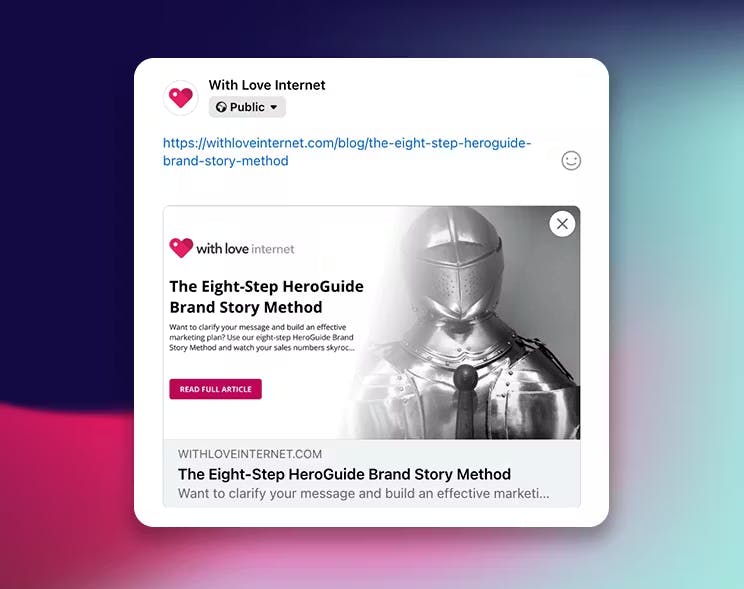
Here’s what one of our links looks like on Facebook with proper Open Graph tags:
And here’s a link without them
Same platform, no OG image:
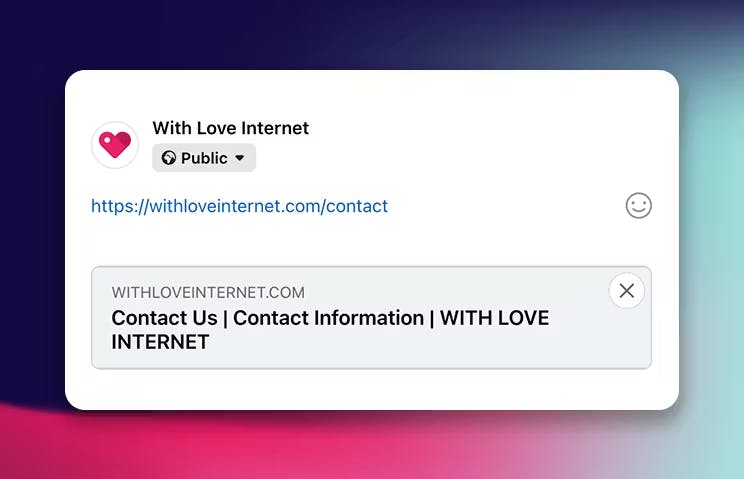
Yikes. It looks unfinished, it takes up half the space, and unfinished doesn’t get clicked.
" Skipping Open Graph tags is like paying for a billboard and leaving it blank. "
Why Open Graph Tags Matter for Your Clicks
Every shared link is fighting for a few seconds of attention.

In marketing, the Five-Second Rule says people decide in about five seconds whether something is worth their time. In a busy feed, it’s often less.
A good Open Graph preview helps you win those seconds in three ways:
- It stops the scroll. A big, branded image takes up far more of the feed than a plain link.
- It sets expectations. A clear title and description tell people exactly what they’ll get when they click.
- It builds trust. Consistent, branded previews make your business look established every time your content is shared.
And you’re not the only one sharing your links. Every time a customer drops your page into a WhatsApp group or a Slack channel, your OG tags are doing the selling for you.
The Essential Open Graph Tags (With Examples)
Here are the tags every page should have. Each one goes inside the <head> of your page.
og:title
<meta property="og:title" content="Performance Marketing vs. Organic Marketing (2026 Guide)" />- Keep it short, around 40–60 characters, so it doesn’t get cut off on mobile.
- Lead with the benefit or the problem you solve.
- You can usually skip your brand name. Most platforms already show your domain.
og:description
<meta property="og:description" content="The pros, cons and costs of each, and how to combine them." />- Use one or two sentences that build on the title.
- It can match your meta description, as long as it reads well in a social feed.
og:image
<meta property="og:image" content="https://www.example.com/og/performance-vs-organic.png" />- Use 1200 × 630 pixels (1.91:1). LinkedIn recommends 1200 × 627, close enough to use the same file.
- Add og:image:width and og:image:height so Facebook can show the image correctly the first time your page is shared.
- Add og:image:alt to describe the image for people using screen readers.
- Keep important text away from the edges, since some apps crop the image.
- Changing your image? Give it a new URL. Facebook caches images by URL, so the old one can stick around.
og:url
<meta property="og:url" content="https://www.example.com/blog/performance-vs-organic" />- Use your canonical URL, so shares and reactions all count toward one page.
og:type
<meta property="og:type" content="article" />og:locale
<meta property="og:locale" content="en_GB" />- Only needed if your page isn’t in US English, which is the default.
twitter:card
<meta name="twitter:card" content="summary_large_image" />- X falls back to your og: tags for the title, description and image, but it needs twitter:card to show the large image preview.
" Your OG image is the biggest part of your link preview. Make it count. "
How to Write OG Titles and Descriptions That Get Clicked
The fewer words you have, the harder they have to work. That’s why we write every OG title and description with our HeroGuide Brand Story Method: your audience is the hero, and your content is the guide that solves their problem.

Here’s a bad example:
- OG title: Meta Ads Campaigns
- OG description: Meta ads are essential for marketing and can help you a lot. Learn here how to use them.
It’s bland, vague and about the topic, not the reader. Now a better version:
- OG title: Get More Sales From Meta Ads (Without Wasting Budget)
- OG description: The 3-step Meta Ads funnel we use to turn cold audiences into customers, plus the tracking setup that makes it work.
What changed?
- It names a result the reader wants.
- It points to a problem they have: wasted budget.
- It promises something specific in return for the click.
One more rule: be honest. If your preview promises something your page doesn’t deliver, people leave, and they remember.
How to Check Your Open Graph Tags
Before you share an important page, preview it. These free tools show you exactly what each platform sees:
- Facebook Sharing Debugger shows the tags Facebook reads, flags errors and lets you force a fresh scrape after a fix.
- LinkedIn Post Inspector shows how your link will look on LinkedIn and refreshes its cached version.
- OpenGraph.xyz lets you paste any URL and preview it on several platforms at once.
- On X, paste the link into a draft post to see the card before you publish.
Tip: if you updated your tags and the old preview still shows up, it’s cached. Run the URL through the Sharing Debugger or Post Inspector to refresh it.
How to Automate Branded OG Images for Every Page

Designing a custom OG image for every page doesn’t scale. Here’s how we handle it on our own site.
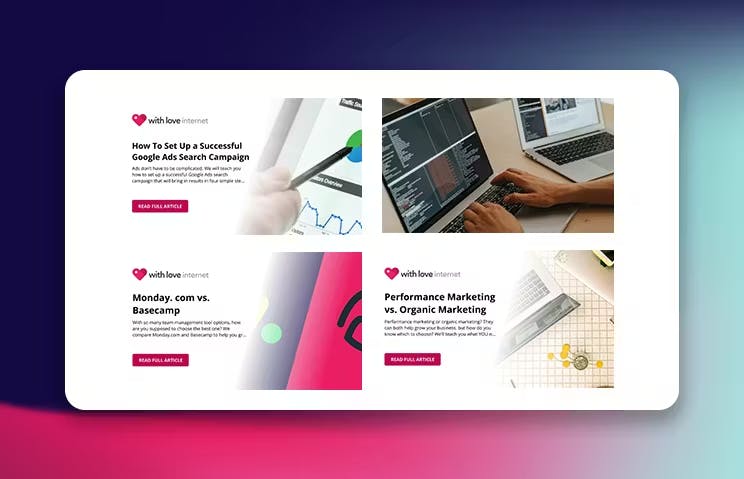
We designed one branded template in OpenGraph.xyz with placeholders for the title, author and featured image. Our website, built with Next.js and Prismic, fills in those placeholders automatically for every blog post.
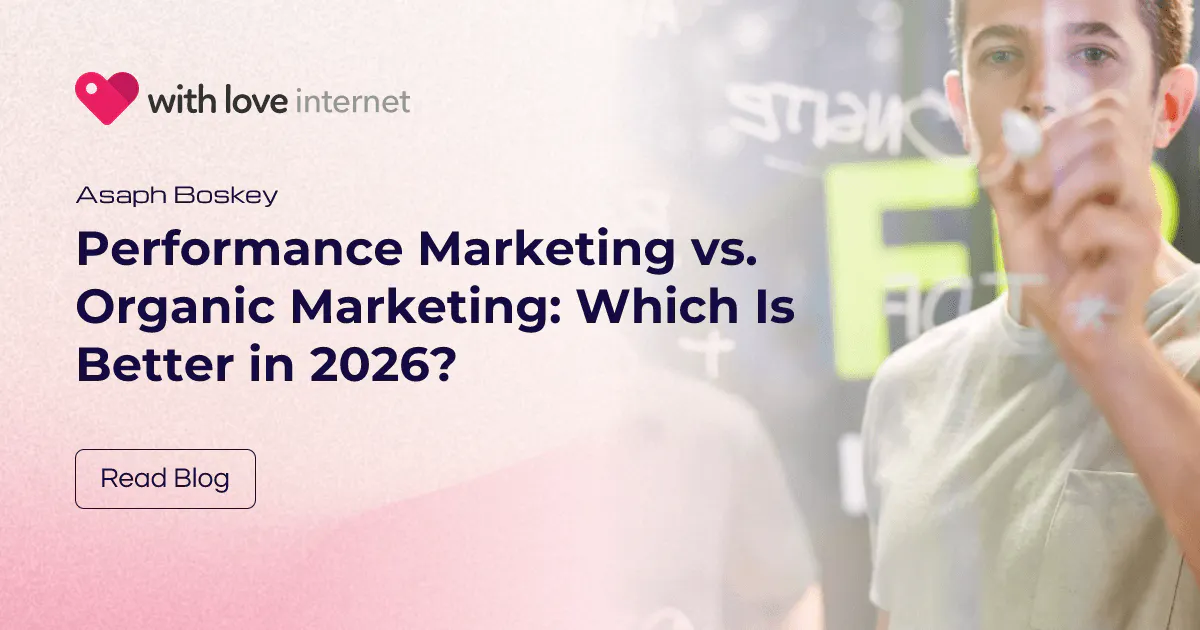
The result: every new article gets a branded, on-message preview the moment it’s published, with zero design work. Here are a few more from our blog:
Set it up in 4 steps
- Create an account on OpenGraph.xyz.
- Design a template, or start from one of theirs, with dynamic fields for your title and image.
- Add the generated image URL to each page’s og:image tag, filling in that page’s title and image.
- Test a few pages in the Sharing Debugger, then publish.
OpenGraph.xyz plans currently start at $29/month.
Open Graph Tags Checklist
- og:title: 40–60 characters, benefit first
- og:description: one or two sentences
- og:image: 1200 × 630, with og:image:width, og:image:height and og:image:alt
- og:url: your canonical URL
- og:type: article for posts, website for everything else
- twitter:card: summary_large_image
- Tested in the Sharing Debugger and Post Inspector
Open Graph Meta Tags FAQ
Not directly. Google doesn’t use them as a ranking factor, but better previews earn more clicks and shares, which brings more people to your content.
Want Every Shared Link to Look This Good?
We set up Open Graph tags, dynamic branded OG images and the rest of your technical SEO, so every page you share is ready to get clicked.